Online help for Jellox Node Basic/ Jellox Node Elite
General product information
The Jellox Node is a data logger designed for use in sewers with zone 1 explosive atmosphere that allows to never miss an event in the sewer again. It is hence designed for use in the field of water disposal. This includes the process of wastewater treatment and disposal, in which the used water is collected, treated and reintroduced into the environment or otherwise reused. Up to 4 remote sensors can be used to determine, process and transmit water and fill levels. The Jellox Node is suitable for both mobile measurement campaigns and permanent stationary measurements. It can be used as a stand-alone device or as part of a swarm sensor system. Areas of application include the monitoring of water levels, fill levels, flow rates (based on the water level, separate calculation required), rain events, external water discharges, monitoring the usage of the sewer system and the detection of overflows, blockages or manhole blockages. By using the mobile network to transfer data to the server, the site rarely has to be physically accessed and the data can be accessed at all times.
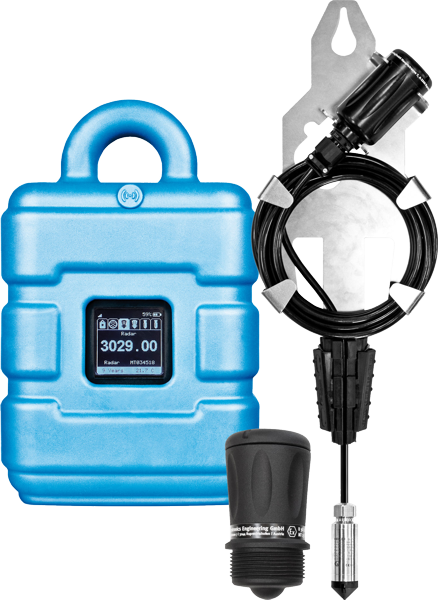
Product characteristics:
- ATEX certified for zone 1
- Compact dimensions
- Configurable via web interface
- Data transmission via LTE-M/NB-IoT
- Adjustable transmission and record interval
- Colour display
- Excellent chemical resistance
- Very low commissioning and operating costs
- integrated SIM chip
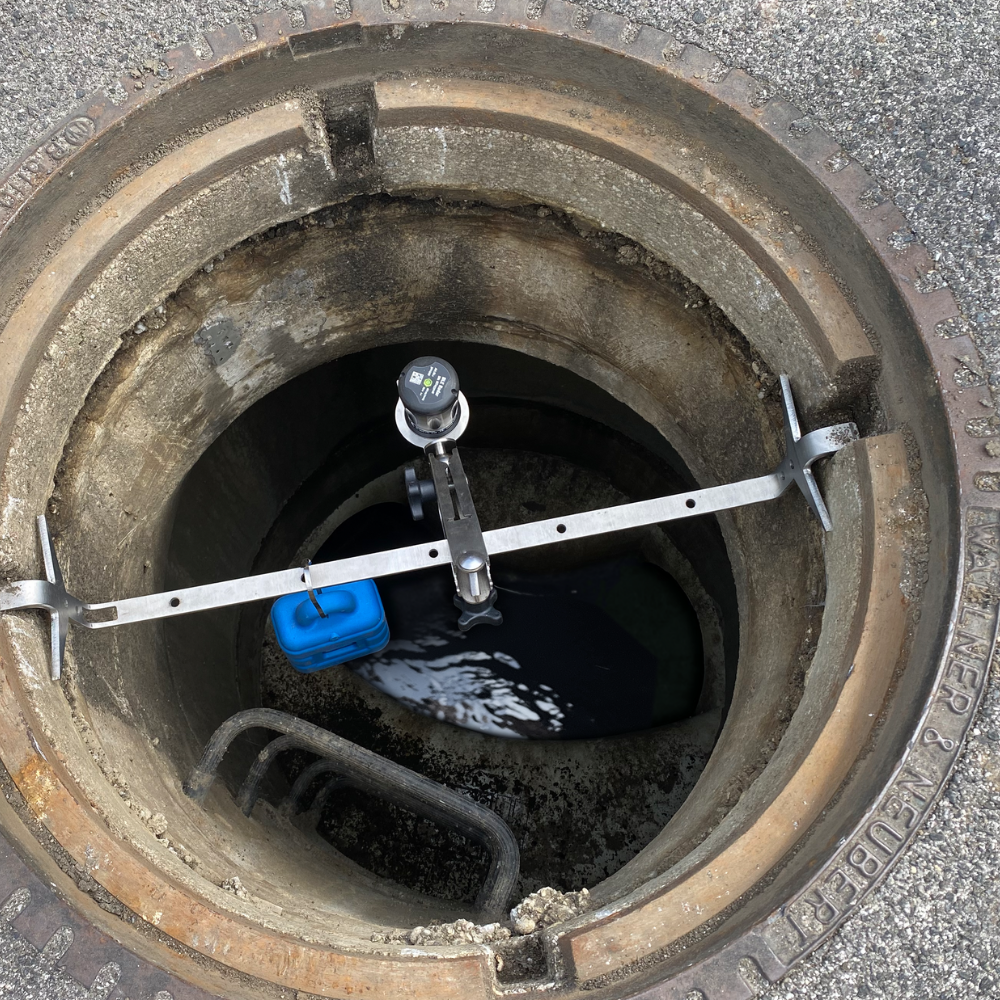
Application:
- Stormwater overflow basins
- Sewage plants and industrial plants
- Municipal water and waste water systems
- Measurement campaigns
- Swarm sensor system
This online help is applicable from:
Frequently asked questions (FAQs)
 What do the error codes mean?
| Error code | Description |
|---|---|
| E001 | sensor configuration not permitted for this variant |
| E002 | last mobile network connection failed |
| E003 | radio connection to remote sensor/actuator not possible |
| E013 | unambiguous selection of the sensor for the measurement channel not possible |
| E014 | state of charge of the internal rechargeable buffer battery too low for a mobile network connection to be established (recharging automatically may take up to 4 hours) |
| E020 | no valid measurement value |
| E100 | hardware error (contact the manufacturer) |
| E110 | analogue input faulty (contact the manufacturer) |
| E120 | sensor cable between Gauge and pressure sensor damaged |
| E140 | setpoint output not possible as the current loop is interrupted |
How do I initiate a connection?
|
|
|
How-To-Video: Triggering the setup mode |
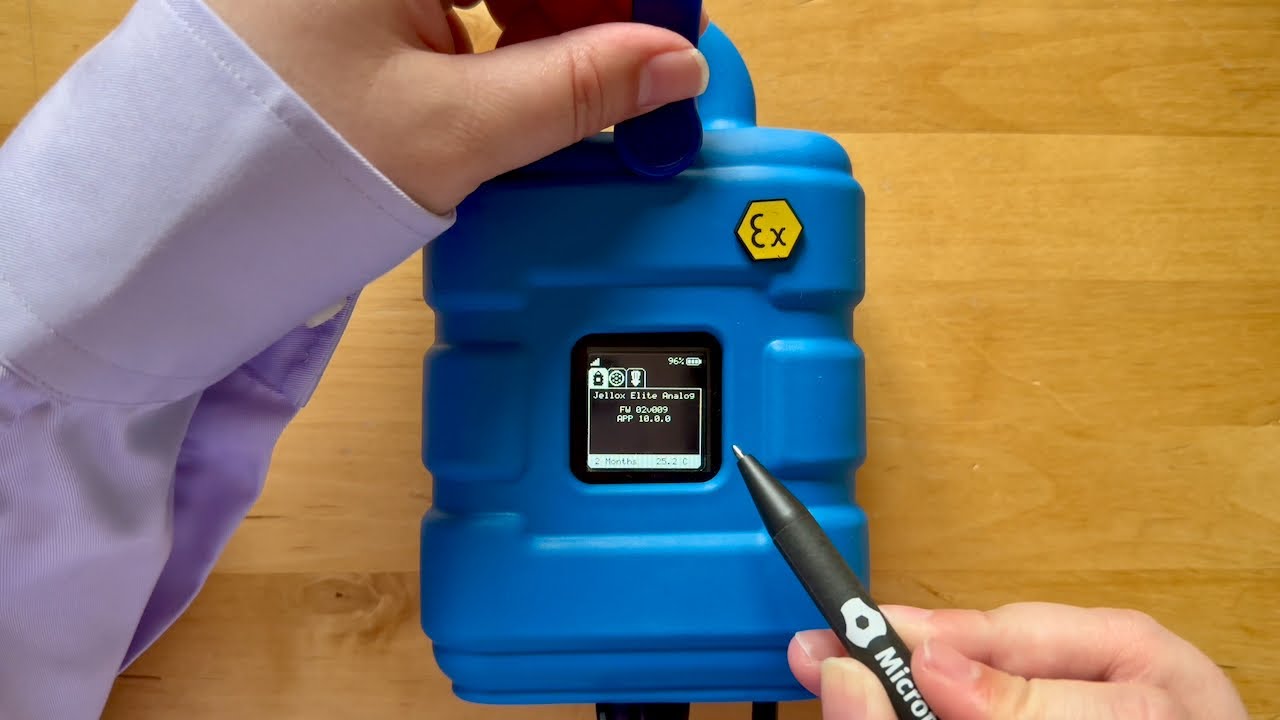
Tap the MDN Magnet (206.803) on the position shown in the following figure for at least 3 seconds.
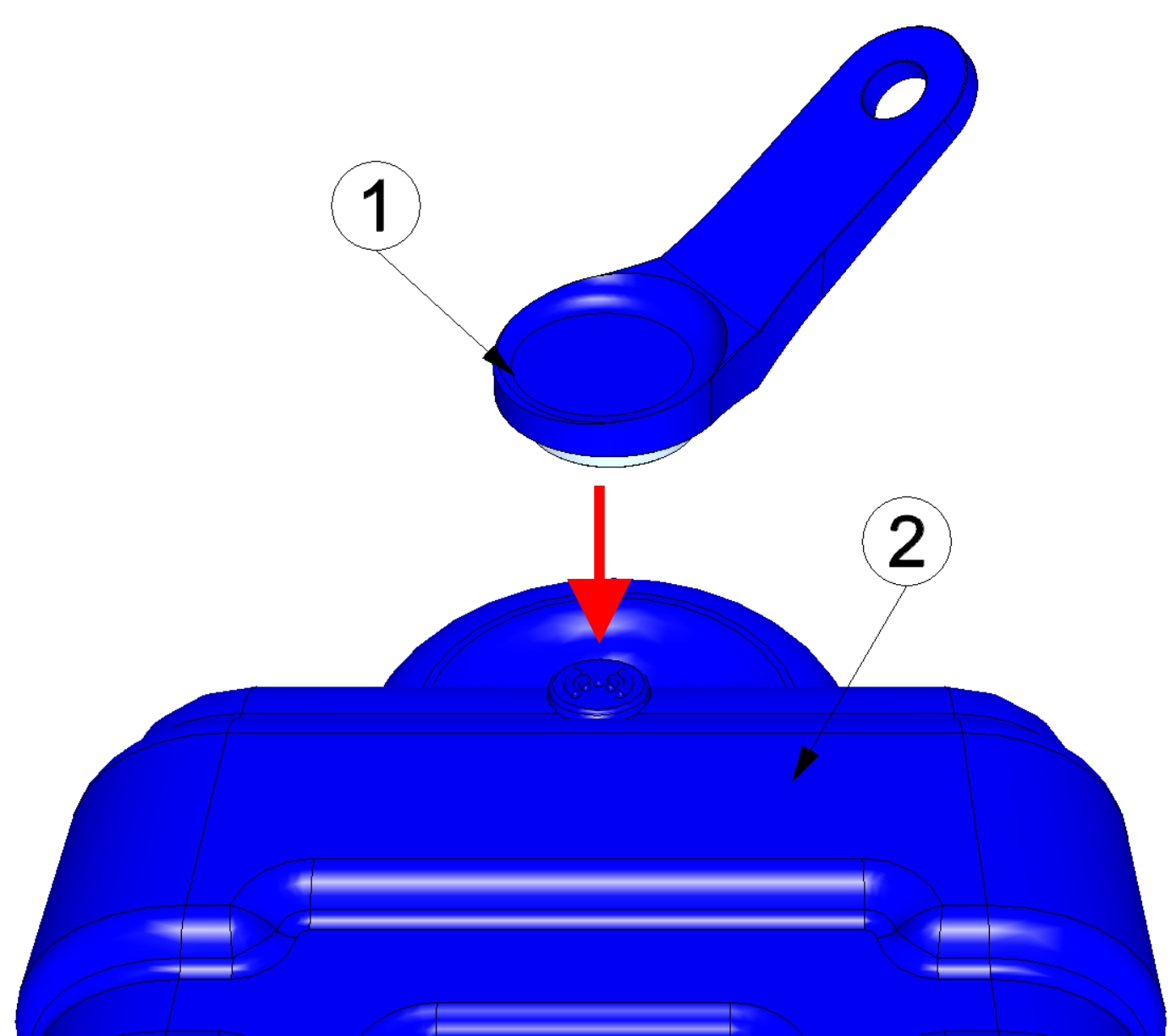
| 1 | MDN Magnet (206.803) | 2 | Jellox Node |
How do I activate the Dispaly?
Briefly tap the MDN Magnet (206.803) on the position shown in the following figure (approx. 1 sec.).
When tapping the first time after activating the display, automatic switching between the tabs is deactivated. After that, you can switch to the next tab everytime you tap again.
| 1 | MDN Magnet (206.803) | 2 | Jellox Node |
How do I install the Multi band antenna with
bracket ?
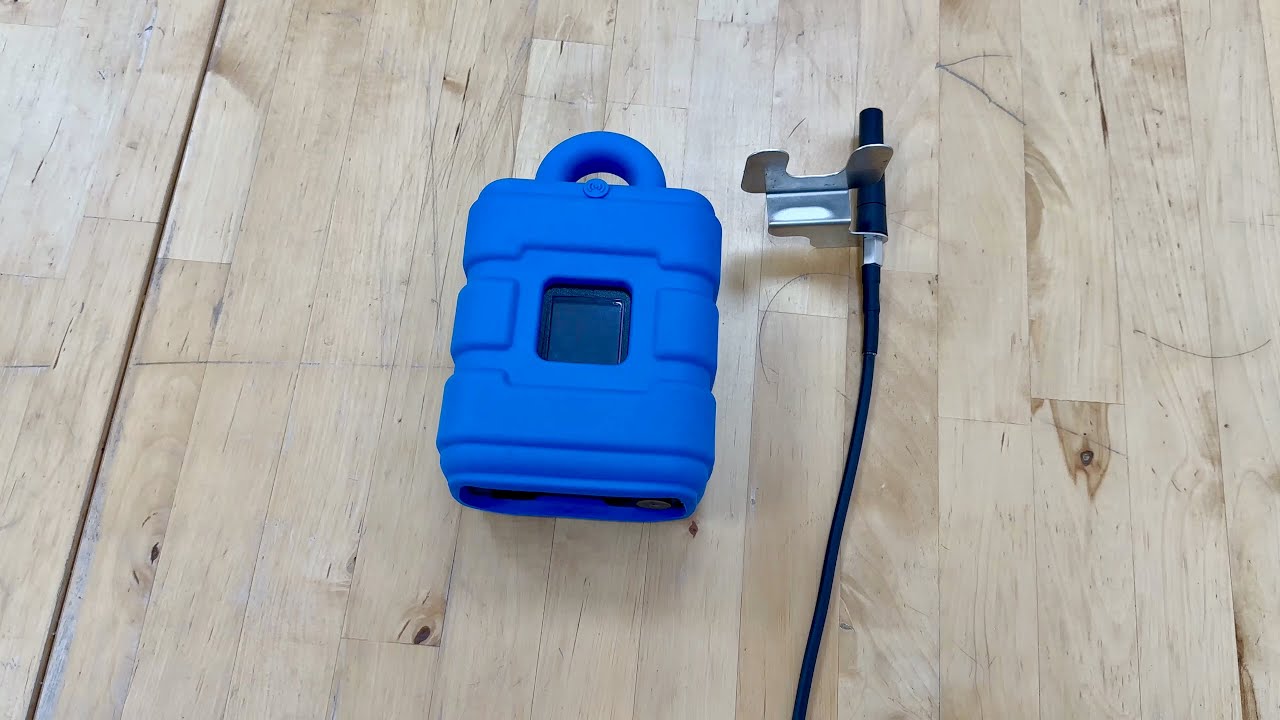
|
| How-To-Video: Installing the Multi band antenna with bracket |
- Push the Jellox Node slightly out of the protective armour
- Slide the antenna bracket into the opening on the back of the protective armour
- Push the Jellox Node completely back into the protective amour
- Remove the sealing plug that protects the antenna connector
- Connect the antenna connection cable to the antenna connector on the device

|
Avoid applying excessive force when tightening the antenna. No tools may be used. The antenna should only be tightened by hand. |
Which remote sensors are available?
| Description | Measurement range | Quantity | Order number |
|---|---|---|---|
| Sensors for fill levels | |||
| Gauge pressure sensor 0-3m 9W | 0-3 m | 1 | 300893+300871 |
| Gauge pressure sensor 0-1m 9W | 0-1 m | 1 | 300893+300872 |
| Gauge pressure sensor 0-10m 9W | 0-10 m | 1 | 300893+300891 |
| Sensors for water levels | |||
| Radar | 0...5 m | 1 | 301443 |
| Sensors for surface velocities | |||
| VEL-R-5 | -5...+5 m/s | 1 | 400416 |
How do I re-establish the radio connection to the remote sensors?
There is currently no direct way to manually trigger the radio connection to the remote sensors. However, you can activate transport mode briefly and then deactivate it again immediately. Once transport mode is deactivated, the radio connection to the remote sensors is established.
Proceed as follows:
- Activate transport mode (set the "Operation mode" in the Device settings to "transport")
- Trigger a connection to transmit the changed configuration (see Setup mode)
- Wait until the connection has been deactivated and the transport mode has been activated (see Status bar).
- Trigger a connection again to deactivate the transport mode once more (see Setup mode).
If you do not take any action, the radio connection to the remote sensors is automatically established 2 hours after the interruption has been signalled (error "E003", see Error codes). Unmittelbar beim Auftreten der Unterbrechungen wird mehrmals versucht, die Verbindung wieder herzustellen, bevor der Fehler "E003" ausgelöst wird.
How can I check the quality of the radio connection to the remote sensors?
The Jellox Node transmits more measurement values than are displayed in the default report template for displaying the measurement data. This includes the signal strength of the radio connection ("RSSI") for each of the remote sensors. How can I check the quality of the radio connection to the remote sensors?
|
|
The following section describes how to create a report. More information is provided in the "Reports" section of the myDatanet Server Manual . |
To display the "RSSI" measurement value, proceed as follows:
- Create a new report (plus symbol in the "Reports" section of the "Sites / Applications" area at customer level)
- Add a report element of type "Graphic" to the report you have just created.
- Open the configuration of the graphic report element.
- Use the "Site" and "Channel" drop-down lists to select the RSSI measurement value of the remote sensor to be checked. The name of the measurement value is made up of the variable part (defined via the input window "Remote sensor module of type Radar" or "Remote sensor module of type Gauge") and "RSSI".
- Complete the configuration.
- Evaluate the displayed measurement curve. The signal strength should always be above -75 dBm (e.g. -70 dBm).
Take the following precautions to improve the radio connection:
- Remove interfering objects. A direct line of sight between the Jellox Node and the remote sensors ensures optimum connection conditions.
- Reduce the distance between the Jellox Node and the remote sensors.
How can I link additional remote sensors to the Jellox Node ?
There is currently no possibility for customers to add additional remote sensors to the Jellox Node at a later date or to replace an existing remote sensor.
Should you still need to do so, please contact support (support.microtronics.com). Our support team can usually carry out the requested action remotely. It is therefore not necessary to send in the Jellox Node .
|
|
The support team is also limited to the maximum permitted number when adding remote sensors. Only one remote sensor can be used with the Jellox Node Basic . Up to 4 remote sensors can be used with Jellox Node Elite . |
How do I deactivate the Jellox Node again?
Activate transport mode by setting the "operating mode" in the input screen "Device settings" (see Device settings ) "transport". After that, initiate a connection (see Setup mode) to transmit the changed configuration to the Jellox Node .
How can I assign a different Jellox Node to the site? I.e. how do I replace a device?
The measurement data is assigned to the site and not to the linked device. If a device is replaced, all data (measurement values and configurations) are retained. The site is only assigned a different device by changing the serial number. From this moment on, the site receives the measurement data from the newly assigned device.
Proceed as follows to assign another Jellox Node to the site:
- Activate transport mode on the new device (see Storage of the product). Transport mode is already active on newly delivered Jellox Node .
- Open the default input screen for configuring the site (click on the pencil symbol in the list of sites, see "Sites / Applications" area at customer level).
- Enter the serial number of the new device in the "Device S/N" field of the configuration section "Site".
- Trigger a connection on the device to be replaced (see Setup mode). All data that has not yet been transmitted is transferred to the server.
- Check whether all relevant data has been transferred. If necessary, trigger the connection again.
- Trigger a connection on the new device to transfer the the configuration of the site (and therefore also the assignment to the site) to the new device.
From this point on, the site receives the measurement data from the newly assigned device.
| As the replaced device is now not assigned to a site, it no longer records any data. However, it will continue to establish a connection to the server at the last set transmission interval in order to be informed about the assignment to a site if necessary. However, it is recommended to activate transport mode. To do so though, the device must be assigned to a site. The site can be deleted again after activating transport mode. |