"Customer" area
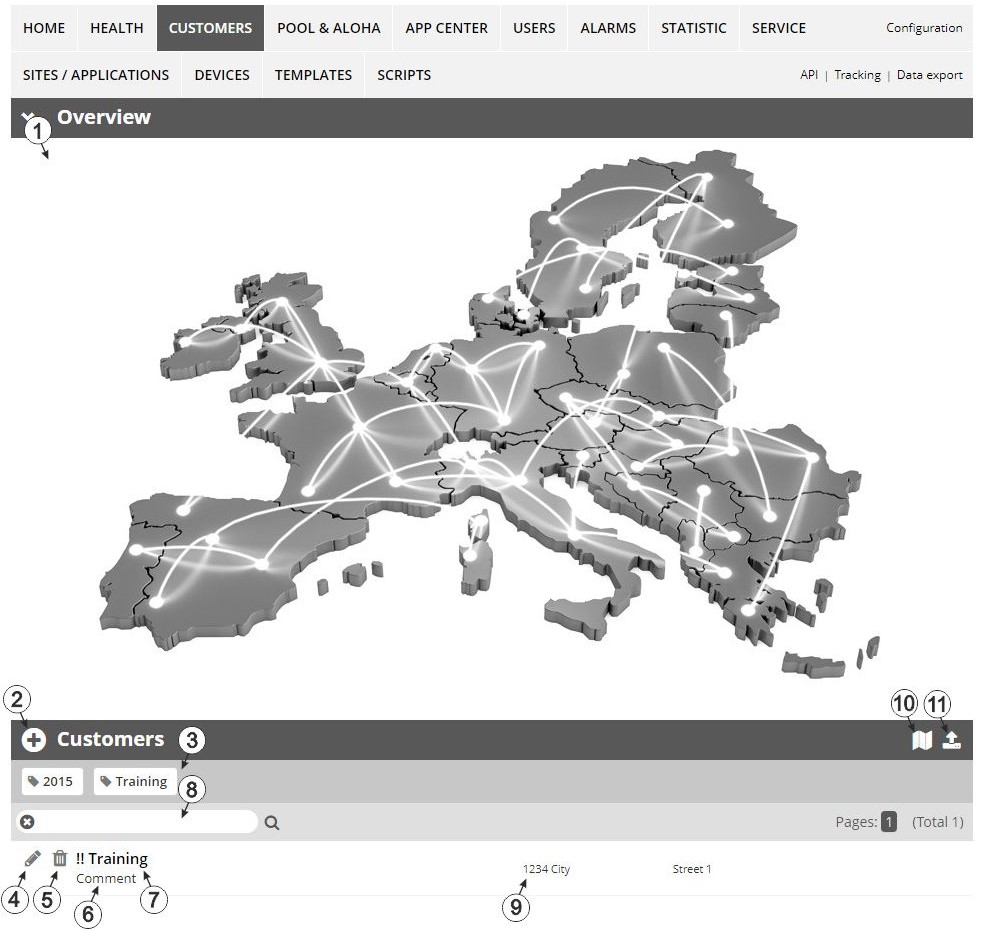
Overview of the "Customer" area
| 1 | Area
where an image file can be displayed as a "Map" and/or the
OpenStreetMaps map can be displayed
The sites can be manually placed on the image file used as a "map". In the OpenStreetMaps map, the sites are only displayed once GPS coordinates have been assigned to the site. |
| 2 | Adds a new customer |
| 3 | List of tags that are
assigned to at least one of the customers displayed in the list of customers. If the
list of customers was limited by the search field or selection of a tag, this is
taken into consideration when creating the list of tags. A cross is added to the end
of the list of tags as soon as the list of customers is limited by the selection of
a tag. Clicking on this cross will reset the selection of all tags and the
restriction is cancelled.
By clicking on one of the tags with the left mouse button only those customers who have been assigned the corresponding tag are displayed in the list of customers and the selected tag is highlighted in colour. By clicking on one of the tags with the right mouse button all of the customers who have been assigned the corresponding tag are hidden, the selected tag is highlighted in colour and the title of the tag is crossed out. Clicking the same mouse button again will remove the restriction. |
| 4 | Opens the input screen for configuring the customer |
| 5 | Deletes the customer |
| 6 | Comment that can be entered in the configuration of the customer |
| 7 | If a default report was defined, the default report is accessed by clicking on the name of the customer. Otherwise the "Sites / Applications" area at customer level is opened by clicking on the name of the customer (see "Sites / Applications" area at customer level or Reports). |
| 8 | Search field to filter the customer list |
| 9 | Customer's address that can be entered via the input screen for configuring the customer |
| 10 | Symbol via which a OpenStreetMaps map, on which the sites are displayed, can be loaded. (see Map view) |
| 11 | Symbol via which an image file can be loaded on to the server as an "Overview map"
To remove the "Map" again, open the upload dialogue again and click on "Submit" without selecting an image file beforehand. |


